
Copernix app · Free on iPhone and Android
Be found. And help others be found.
The free Copernix app gets your phone ready for the day rescuers have to find you, lets you talk with them before they reach you, and turns the phones around you into a lifeline: with no cell service, it calls for help over Bluetooth to anyone nearby who has the app.
How it works
Set it up once, while you are calm.
In an emergency you may not be able to answer your phone's questions. So the app asks for everything once, at the start, and never pops a dialog again: later, the main screen only shows what is missing.
- 01
Create your account
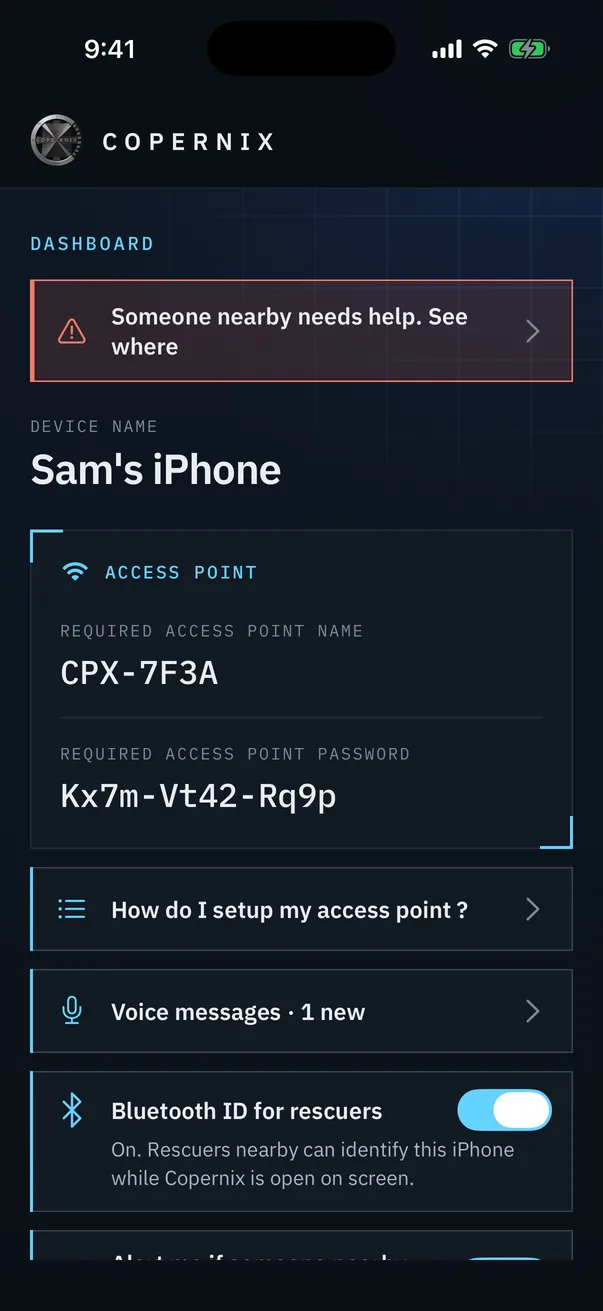
Sign in to link the phone to your Copernix account. Copernix gives the phone its own access point name and password.
- 02
Set up your access point
A step-by-step guide shows each Settings screen to rename your hotspot, and sets up Siri so you can turn it on with the screen off.
- 03
Allow the emergency permissions
Microphone, speech recognition and notifications, once, so you can record messages for rescuers, answer them by voice and hear when they reply.
- 04
Choose your Bluetooth options
A Bluetooth ID so rescuers' equipment can identify your phone, and alerts when someone nearby needs help. Both are off until you turn them on.
01 · Be found
Your phone, ready for a search team.
When a search is on, the team's Liberandum listens for your phone's Wi-Fi hotspot, under the name Copernix gave it, and leads the team to it.
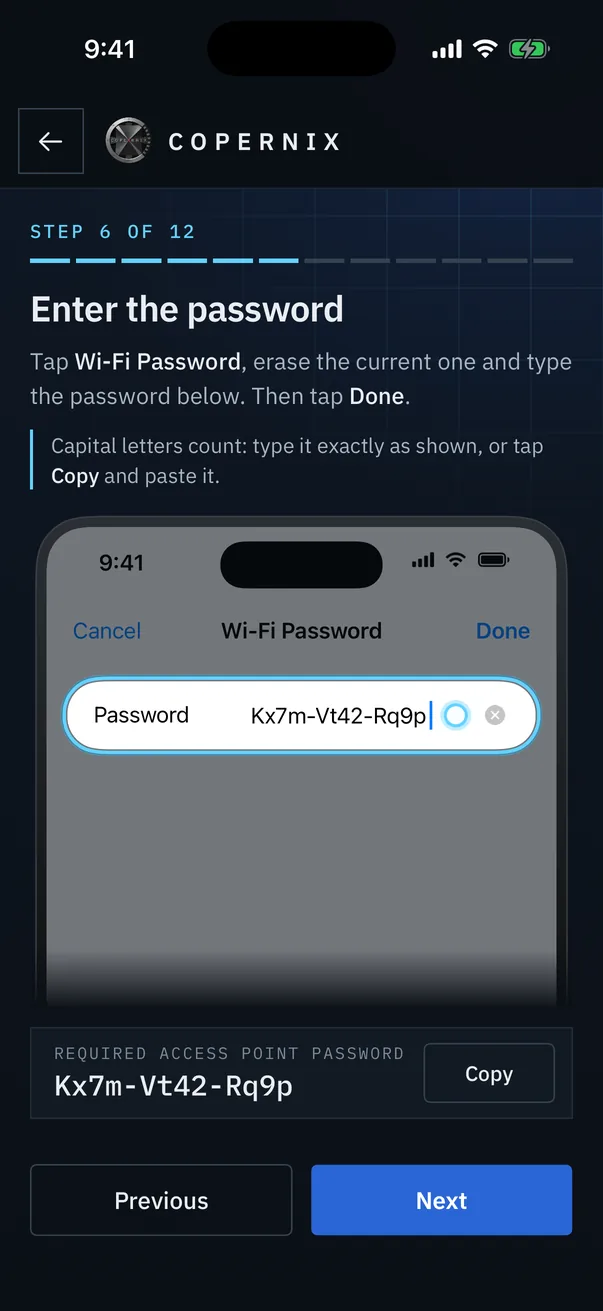
- Access point, step by step. The app can't change these settings for you, so a 12-step guide shows each Settings screen in your phone's language, with a spotlight on what to tap and a Copy button for the password.
- On with the screen off. Said with the screen dark, “Hey Siri, turn on Personal Hotspot” keeps the hotspot on; turned on with the screen on, the iPhone turns it off again to save battery.
- Bluetooth ID for rescuers. While Copernix is open on screen, your phone sends an ID linked to your account so rescuers' equipment can tell it is yours. It doesn't reveal your name or account details.
- K9 whistle. Plays a dog whistle every 60 seconds, for search teams working with dogs.
02 · Talk with rescuers
Tell them where you are and how you are doing.
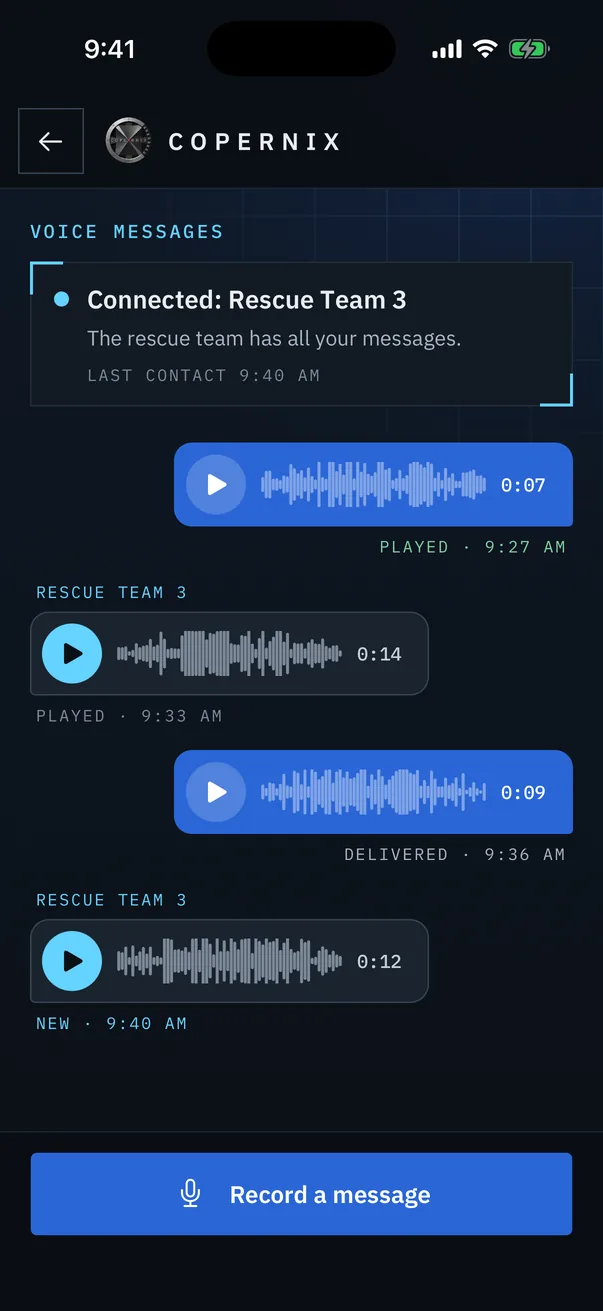
Record voice messages for rescuers ahead of time. They stay on your phone and go out as soon as a rescue team connects to your access point, without cell service or internet.
- Hands-free replies. When rescuers answer, the phone says so out loud and asks whether to play it. Answer “yes”, “no” or “repeat”, then speak after the beep: your reply joins the queue.
- Always know where things stand. Each message shows whether it is waiting, delivered or played, and the screen shows when the team last made contact.
- Up to 2 minutes a message. Messages older than 30 days move to an archive: you can still play them, but they are no longer sent to rescue teams.
03 · Peer rescue
No cell service? The people nearby are your network.
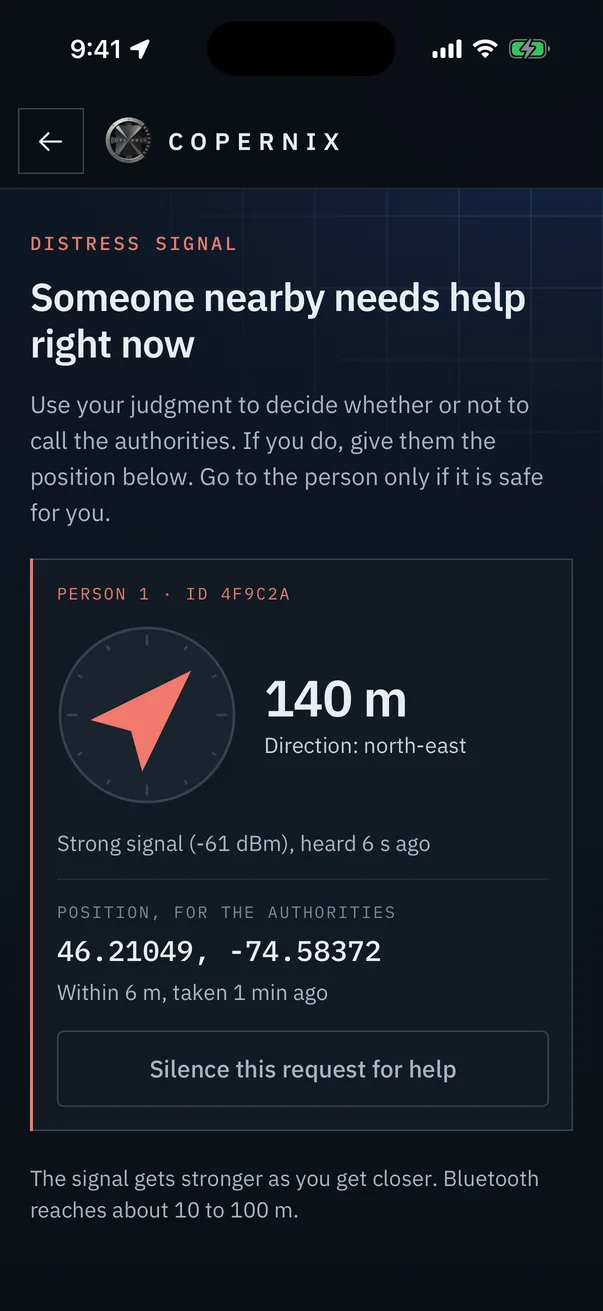
I need help now sends a distress signal over Bluetooth to every phone close by that has Copernix, iPhones and Android phones alike. Their phones ring, even locked and on silent, and an arrow leads them to you. No cell service, no internet, no servers: the phones talk to each other directly.
- 01
Sam calls for help
Hurt off the trail with no cell service, Sam turns on the red I need help now switch and confirms. Sam's phone calls out several times a second, with Sam's position.
- 02
Alex's phone rings
Alex, walking by with alerts on, is within Bluetooth range: about 10 to 100 m. Alex's phone sounds an alarm, even locked and on silent, until Alex looks at the alert.
- 03
Alex follows the arrow
After a reminder that Copernix can't check a distress signal, an arrow points to Sam and turns as Alex turns, with the distance and signal strength, refreshed every second. No map needed.
- 04
Help is on the way
Alex decides whether to call the authorities and reads them Sam's position from the screen, and goes to Sam only if it is safe. Once safe, Sam turns the signal off.
What the signal carries
- That this person needs help right now
- Their position, precise to about 1 to 2 m, how accurate the GPS was, and when it got it
- The first characters of an ID linked to their Copernix account, so rescue teams can tell who it is
What it never carries
- Name, phone number, email, Wi-Fi password, voice messages, or anything else on the phone
- The signal isn't encrypted: anyone nearby with a Bluetooth scanner can read it
- Phones that heard it keep it in memory for an hour, then forget it. They never save it.
Peer rescue simulator
Play both sides of a rescue.
On the left, Sam's iPhone. On the right, Alex's, locked in a pocket. Both run the Copernix app's own screens, with its own words. Call for help as Sam, then walk Alex down the trail and find Sam with the alert.
Bluetooth and GPS
Sam's signal reaches 90 m on this map, and gets weaker with distance as it does in the woods. Both phones' positions are precise to 5 m. Alex walks fast, to save you time.
Every screen and rule
The switch, the confirmation, the lock screen, the alarm, the disclaimer, the arrow and silencing a request work as on an iPhone, including its limits: Sam's iPhone sends only while Copernix is on screen.
Change one thing
Lock Sam's iPhone, turn Alex's alerts off, walk Alex out of range after the alert, or silence the request, and watch what each phone does.
The in-app guide
Eight steps, before you ever need it.
Before anyone turns peer rescue on, the app explains it in eight illustrated steps: exactly what is sent, who can receive it, what the alarm does, and its limits. Here it is as it appears in the app. Tap Next, swipe the picture, or pick a step.
Good to know
What peer rescue can't do.
It reaches only the people close by, and only if they have Copernix. Out of range, nobody knows you need help. Use your judgment to decide whether or not to call the authorities as well.
No confirmation
Your phone can't tell whether anyone heard you. Keep the signal on until help arrives.
Keep Copernix open on iPhone
On an iPhone, the app can send the signal only while it is on screen. The screen stays on, dimmed after a minute; leave Copernix and the signal pauses until you come back.
Battery
The screen, the GPS and Bluetooth use more battery. Turn the signal off once you are safe.
Don't swipe Copernix away
Closed from the app switcher, Copernix stops listening for people who need help until you open it again. Alerts come back on their own after a restart, once the phone is unlocked.
Free · iPhone and Android
Get it before you need it.
Install Copernix, set up your access point once, and turn on the alerts so you can help the next person who needs it.